Platform: iPad, iPhone
User: Administrator, Educator, Learner
The following steps describe how to access video on an iPad or iPhone that has been recorded using the Vosaic app.
Current Version
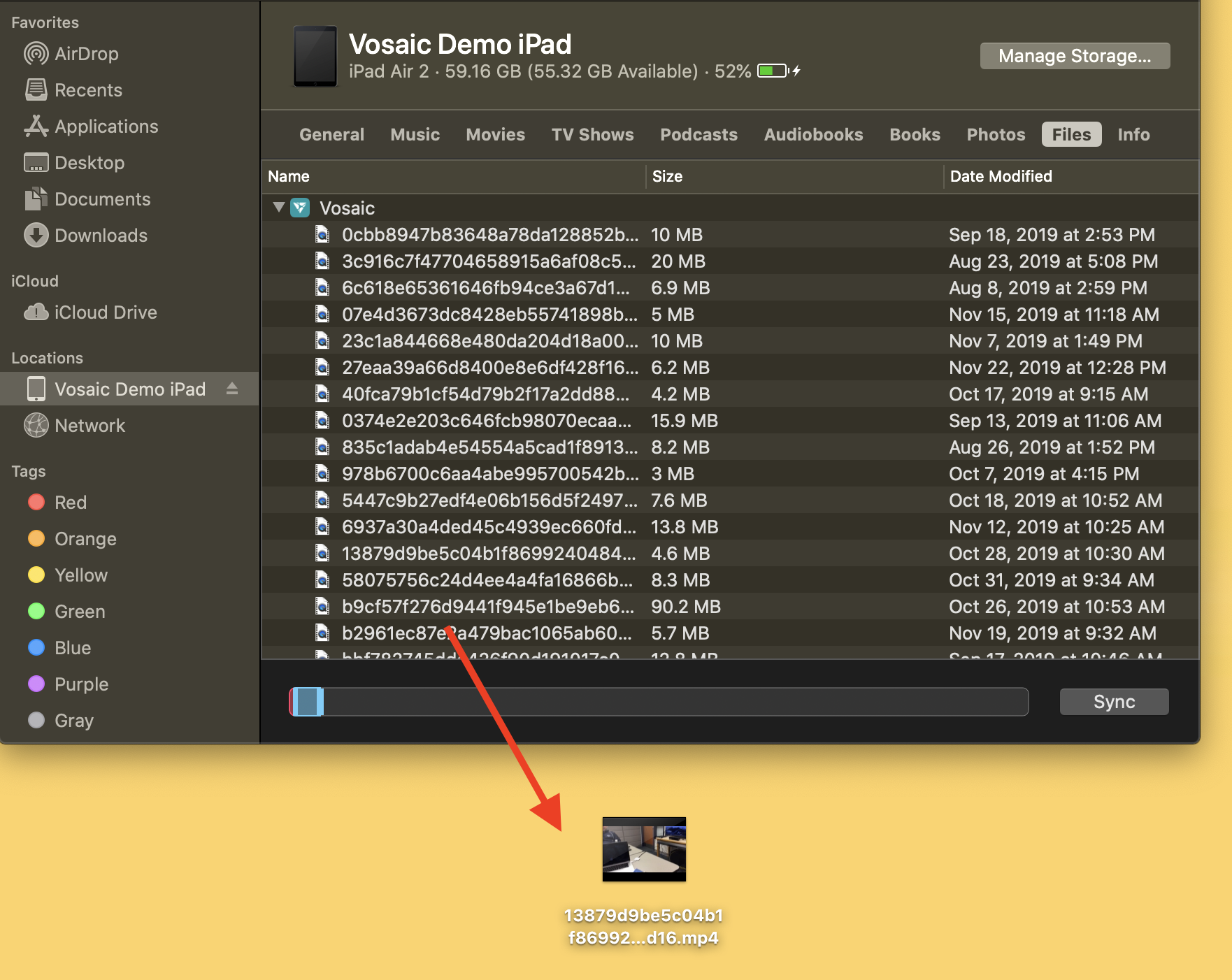
1. Open Finder on Mac laptop or Mac desktop computer.
2. Connect iPad to computer via USB cable.
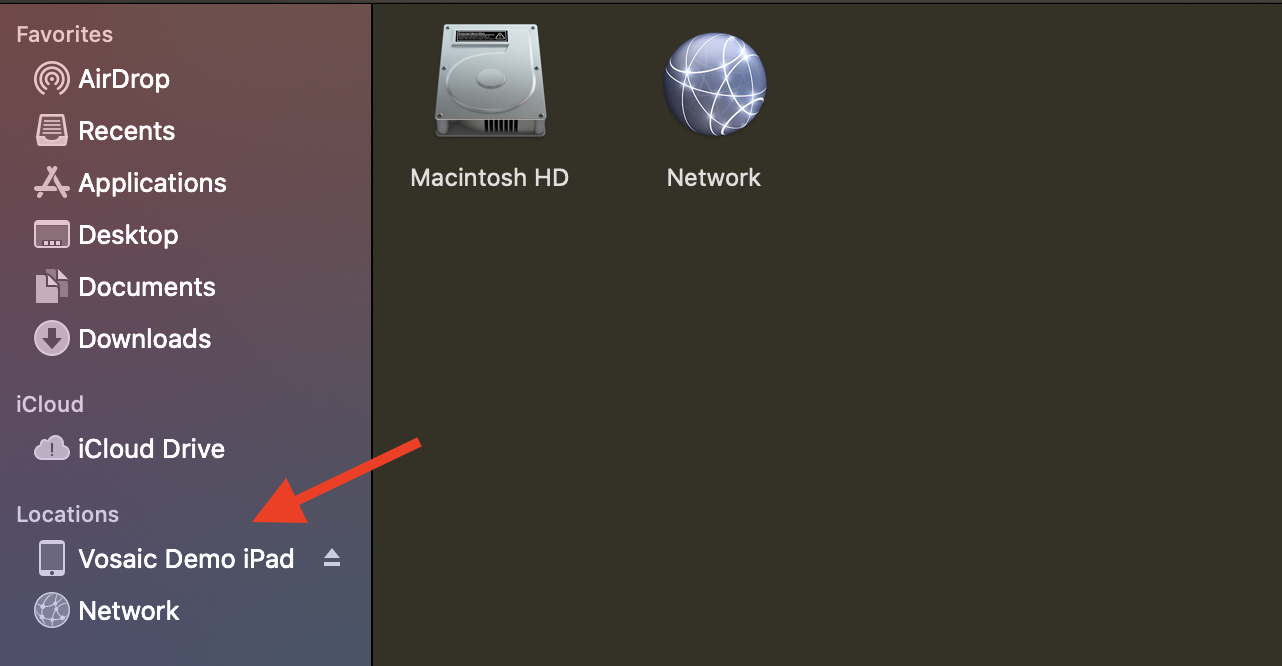
3. Click the iPad icon.
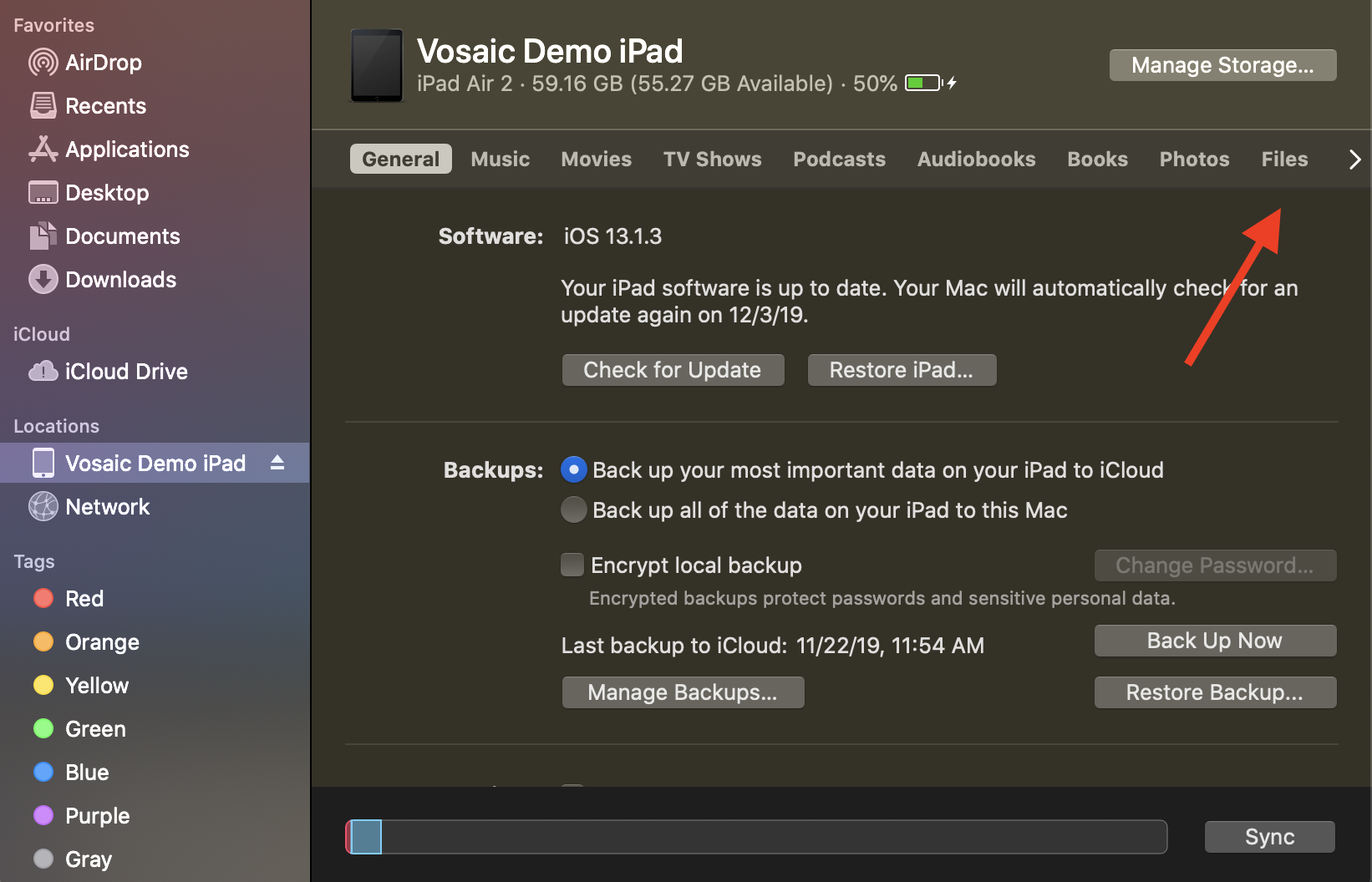
4. Click Files.
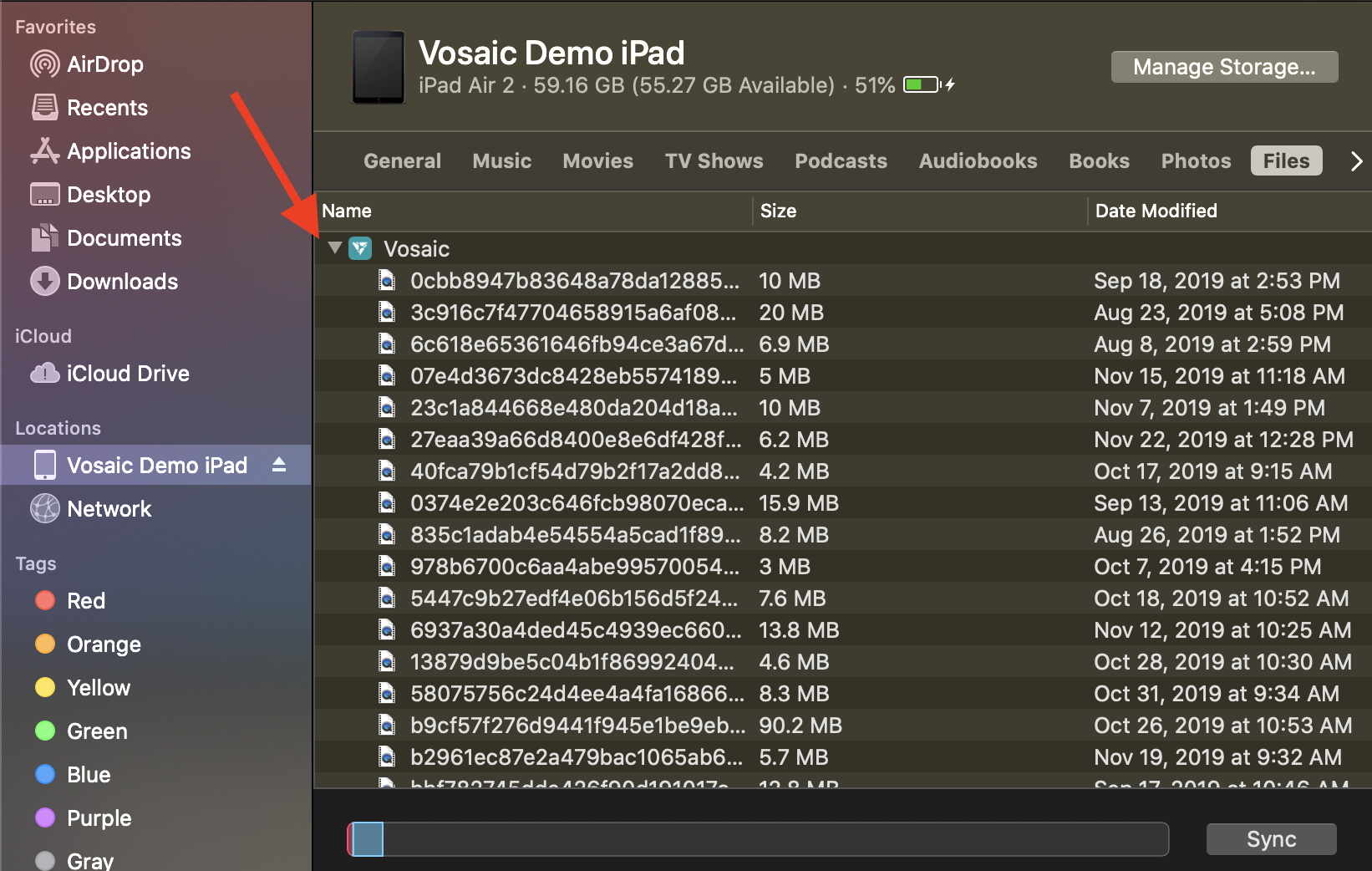
5. Find Vosaic and click on the arrow icon to view documents.
6. Click the video to be accessed.
Note: Video will need to be searched by recorded date.
7. Click and drag video to desired location.
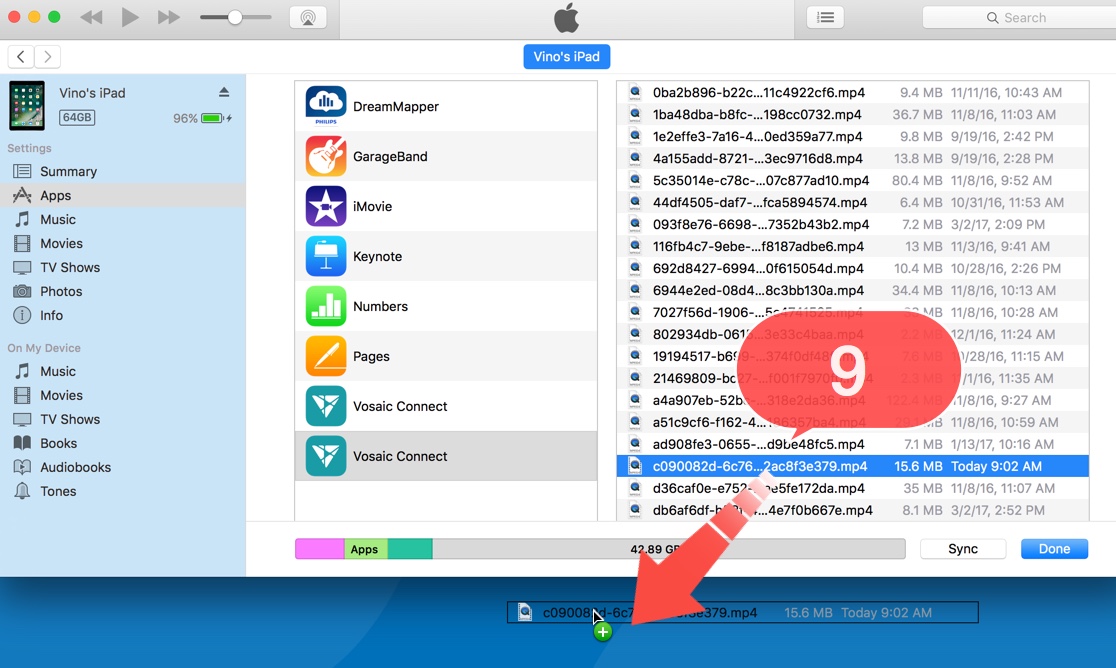
Old Version of iTunes
1. Open iTunes on Mac laptop or Mac desktop computer.
2. Connect iPad to computer via USB cable.
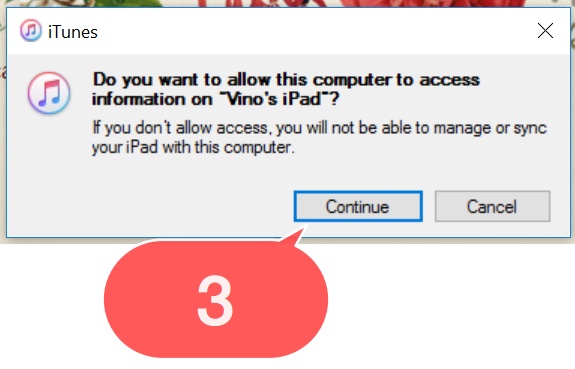
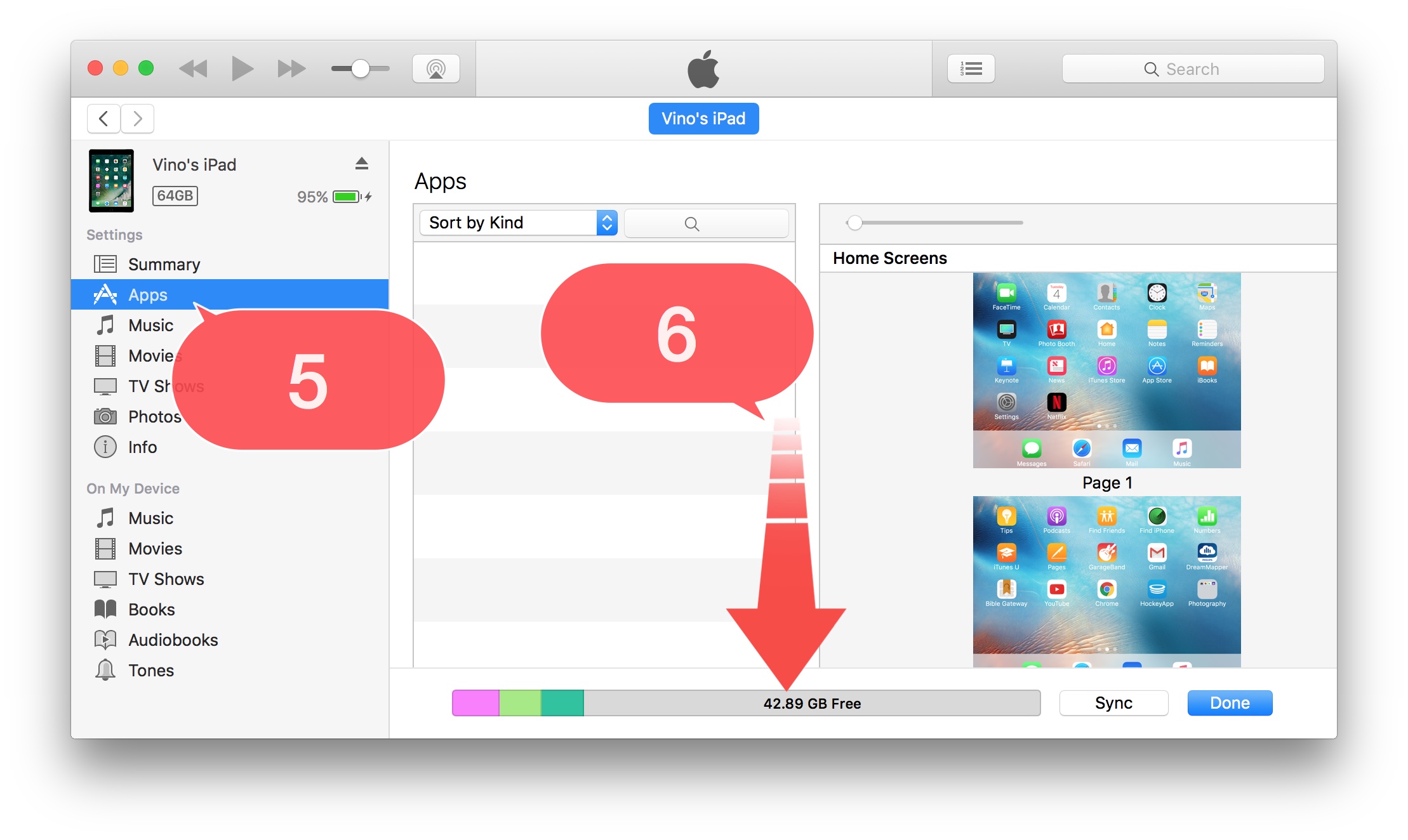
4. Click the iPad icon.

5. Click Apps.
6. Scroll to the bottom of the iTunes window.
7. Click Vosaic.
8. Click the video to be accessed.
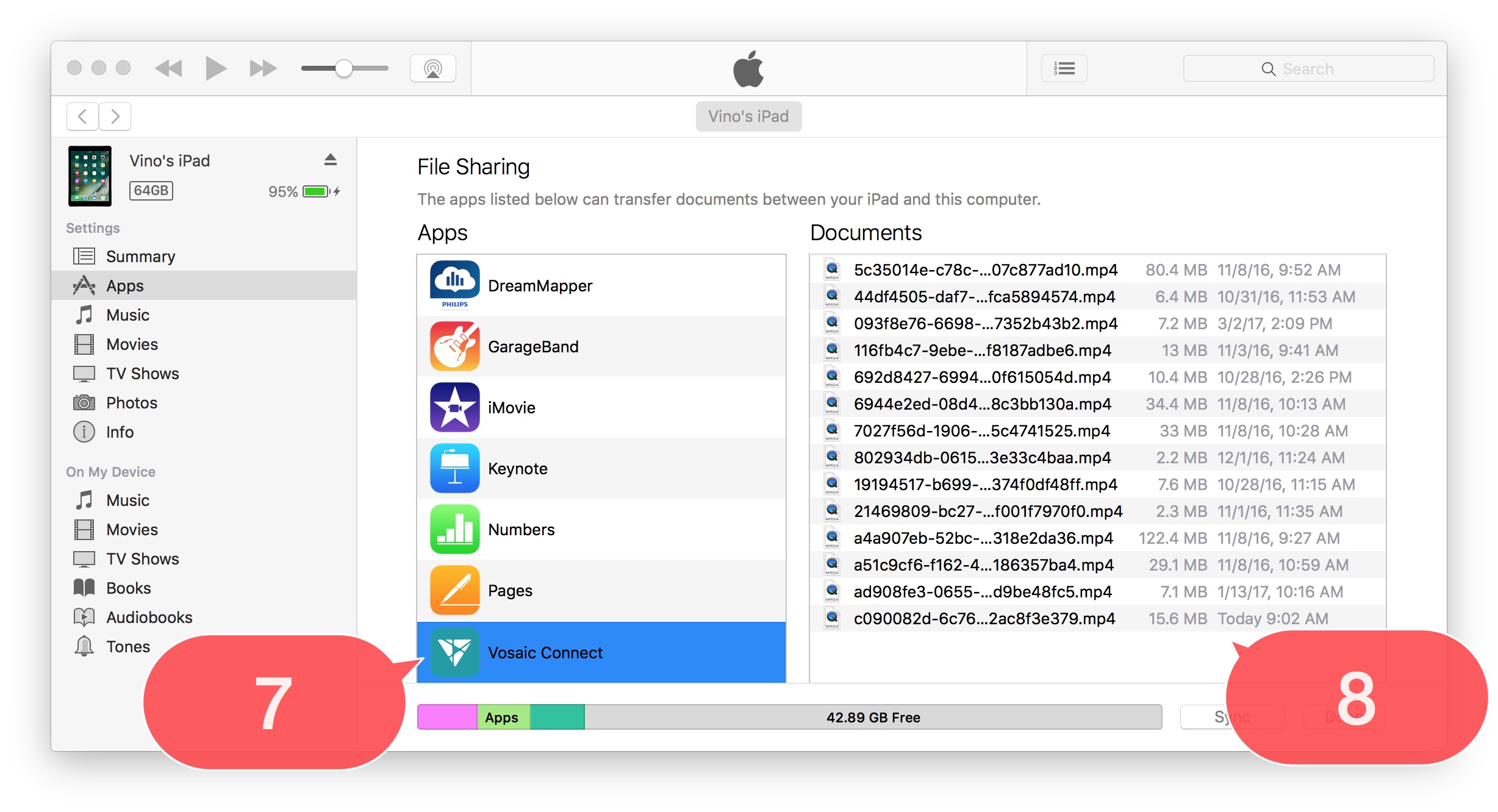
9. Click and drag video to desired location.